How to Make a QR Code for a Link or Text?
A QR code is the square barcode you see on restaurant tables, on shop bills, on wedding cards and on posters. You point your phone camera at it, and the link, the menu or the payment page opens at once, without typing anything. In Pakistan, QR codes are now used for JazzCash and Easypaisa payments, for restaurant menus, and for sharing a Wi-Fi password with guests.
This guide shows you how to make a QR code step by step, what you can put in it, and how to use it safely. It also explains why a QR code from a stranger can be dangerous, and how to test your code before you print it. The free QR Code Generator on this site makes a code in seconds, with no signup and no login.
What Is the QR Code Generator?
A QR code stores information as a pattern of black and white squares. A phone camera reads the pattern and turns it back into text — usually a web link, but it can also be a phone number, an email address, a Wi-Fi password or a short message. The three large squares in the corners help the camera find the code and read it the right way up, even if the code is tilted or partly covered.
QR codes are useful because they remove typing. A long web link is hard to type correctly, but a QR code gets it right every time. A restaurant menu as a QR code means no paper menus to print, and a payment QR code means no cash and no card machine. The code itself does not need the internet to be read — only the link inside it needs the internet to open.
What Goes Into a QR Code
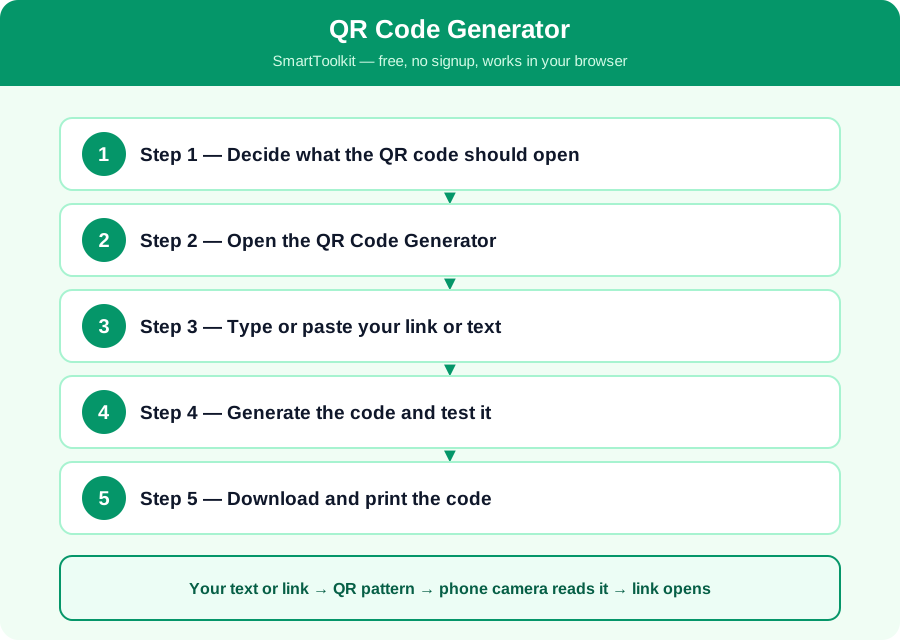
Your text or link → QR pattern → phone camera reads it → link opens
There is no maths formula for a QR code, but there is a process. You type the link or text, the generator turns it into a pattern of squares, and you download the image. The pattern has built-in error correction, which means the code still works even if part of it is dirty, scratched or covered. A code with high error correction can lose up to 30 percent of its squares and still be read, which is why QR codes work on crumpled paper and faded posters.
A QR code can only hold a limited amount of text — about 4,000 characters at most, and much less if you want it to stay easy to scan. A short link works best, so if your link is very long, shorten it first. A code with too much text becomes very dense, with tiny squares that a phone camera struggles to read, especially from far away.
How to Use the QR Code Generator — Step by Step
Follow these five steps one by one. Each step builds on the last one, so do them in order and check your answer at the end.
Step 1 — Decide what the QR code should open
Choose the link or text: a website, a WhatsApp number, a menu, a payment link or a Wi-Fi password. Write it down exactly, including https:// at the start of a web link, because a link without it may not open on some phones.
Step 2 — Open the QR Code Generator
Open the free QR Code Generator on this site. It works in your browser, needs no signup and no login, and only the text you type is sent to the QR image service to draw your code. Nothing is saved on our server.
Step 3 — Type or paste your link or text
Type or paste the link into the box and check it carefully. One wrong letter means the code opens the wrong page, or no page at all, so read the link twice before you generate the code.
Step 4 — Generate the code and test it
Click Generate and the QR code appears. Test it at once: point your own phone camera at it and check that the right page opens. If it opens the wrong page, fix the link and generate the code again. Never print a code you have not tested.
Step 5 — Download and print the code
Right-click the image and save it, then print it at a good size — at least 3 cm wide for a table card, and larger for a poster that people will scan from far away. Print it in black on white for the best result, because low contrast makes the code hard to read.
Worked Example
A restaurant in Islamabad wants a QR code for its menu. The owner copies the menu link, https://example.com/menu, and pastes it into the QR Code Generator. The code appears in seconds, and he tests it with his own phone: the menu opens correctly. He prints the code on a small card for each table, at 4 cm wide, in black on white. Customers scan the code and see the menu at once, without touching a paper menu. A month later he changes the menu link, so he generates a new code and replaces the cards — the old code would have opened the old menu, so testing the new one matters.
Common Mistakes to Avoid
Mistake: Not testing the code before printing. A code with a typing mistake opens the wrong page, and if you have printed 100 cards, you have to print them all again, so always test with your own phone first.
Mistake: Printing the code too small. A code smaller than 2 cm is hard for a phone camera to read, especially in low light, so print it at least 3 cm wide for a table and larger for a poster.
Mistake: Using low contrast colours. A light grey code on a white background looks stylish but is hard to scan, so use black on white for the best result, and avoid putting a logo over the middle of the code.
Mistake: Scanning a QR code from a stranger. A QR code can open a fake website that steals your password or your money, so only scan codes from places you trust, and check the web address before you log in or pay.
Frequently Asked Questions
Do QR codes expire? No, a QR code itself never expires, because it is just a picture of your link. If the link stops working, the code will stop working too, but the code itself does not have a date on it.
Can I put a Wi-Fi password in a QR code? Yes, a QR code can hold Wi-Fi login details, so guests can join your Wi-Fi by scanning it instead of typing a long password. Many phones can generate this from their Wi-Fi settings, and our generator can make a code from the text you type.
Is it safe to scan any QR code? No. A QR code can link to a fake website, so only scan codes from trusted places, such as a restaurant you are sitting in or a shop you know. If the code takes you to a login page, check the web address carefully before you type your password.
Can I change the link after printing the code? No, the link is inside the code itself, so changing the link means making a new code. If you need to change links often, use a short link service, so you can change where the short link points without changing the QR code.
Why Use SmartToolkit for This?
You now know what a QR code is, how to make one, and how to use it safely. A tested code in the right size is a fast, reliable way to share a link, a menu or a payment page. Use the free QR Code Generator on this site — it works in your browser, needs no signup and no login, and only the text you type is sent to the QR service to draw your code.
Use the QR Code Generator — free, no signup, no login, and your data never leaves your browser.