How to Use Online Tools Safely? Privacy and Security Guide
Free online tools are useful, but not every website that offers them is honest. Some websites copy a real tool and add a virus to the download. Some ask for your email or phone number and then sell it. Some show fake download buttons that install unwanted software. In Pakistan, where many people use free tools every day for school, work and forms, knowing how to tell a safe tool from a dangerous one is an essential skill.
This guide shows you how to use online tools safely step by step: how to check a website before you use it, what information you should never type into a tool, and what to do if you think a website has harmed your computer or your accounts. It uses SmartToolkit as an example of a safe tool, because every tool here works in your browser with no signup and no login. At the end, the free tools on this site are all listed for you to use safely.
What Makes an Online Tool Safe?
A safe online tool does its work in your browser and asks for nothing in return. It does not ask you to create an account, it does not ask for your email or phone number, and it does not ask you to download extra software. A calculator that needs your email address is not a calculator — it is a way to collect your data. A tool that asks you to install a program to compress a photo is not a tool — it is a way to put software on your computer.
An unsafe website often looks real at first glance. It may copy the design of a famous tool, it may show a padlock in the address bar, and it may have thousands of fake reviews. The padlock only means the connection is encrypted — it does not mean the website is honest. A safe website also has a privacy policy, a contact page and an about page, and its address matches its name. If any of these are missing, be careful.
The Safety Checklist
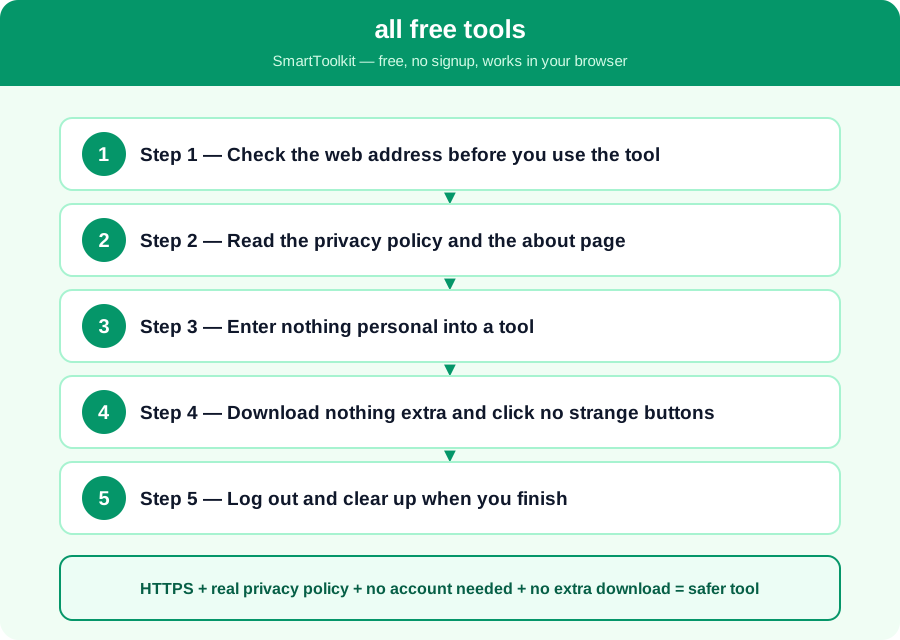
HTTPS + real privacy policy + no account needed + no extra download = safer tool
There is no single test that proves a website is safe, but four checks together are a good guide. First, the address should start with https and show a padlock. Second, the website should have a privacy policy that says what data it collects, and a contact page with a real way to reach the owner. Third, a simple tool should not need an account. Fourth, the tool should not ask you to download anything extra. If a website fails two or more of these checks, do not use it.
Even a safe website can show advertisements, and advertisements can sometimes link to unsafe websites. An ad is not part of the tool, and clicking it takes you to a different website. If an ad asks you to download something or to enter personal details, close it and do not follow it. The tool itself is safe, but the ad may not be.
How to Use Online Tools Safely — Step by Step
Follow these five steps one by one. Each step builds on the last one, so do them in order and check your answer at the end.
Step 1 — Check the web address before you use the tool
Look at the address bar. It should start with https and the name should match the tool you expected. If you searched for a calculator and the address is a strange name with many hyphens and numbers, close the tab. If the address is misspelled, such as smarttoolkit with an extra letter, it is a copy designed to trick you.
Step 2 — Read the privacy policy and the about page
Open the privacy policy and read what data the website collects. A safe tool says it collects nothing, or only what it needs, and it says your data never leaves your browser. If there is no privacy policy, or if the policy says the website can sell your data, do not use the tool.
Step 3 — Enter nothing personal into a tool
Never type your CNIC number, your bank details, your password or your full address into a free tool. A calculator only needs numbers, a word counter only needs text, and an image compressor only needs your photo. If a tool asks for personal details it does not need, close it at once.
Step 4 — Download nothing extra and click no strange buttons
A real tool gives you the result on the page, or one clear download button for the result. If the page shows many large Download buttons, flashing warnings, or a message saying your computer is infected, close the page. Those are tricks to make you install unwanted software.
Step 5 — Log out and clear up when you finish
If you did create an account somewhere, log out when you finish, especially on a shared computer. Clear the browser history if the computer is not yours. Teach these rules to your family too, because children and older people are the most common victims of fake tools and scams.
Worked Example
A student needs to compress a photo for a university form. She searches online and finds two websites. The first asks her to create an account with her email, and then asks her to download a program before she can compress the photo. She closes it. The second is SmartToolkit: it asks for no account, it works in her browser, and her photo is never uploaded to a server. She compresses the photo, downloads the result, and uploads it to the form. Later, a friend sends her a link to a free tool that promises to double her mobile balance if she enters her phone number and a code. She recognises the trick — a real tool never asks for a code — and she deletes the message instead of clicking it.
Common Mistakes to Avoid
Mistake: Trusting the padlock alone. The padlock only means the connection is encrypted, not that the website is honest. A fake website can also have a padlock, so check the address and the privacy policy too.
Mistake: Entering personal details into a simple tool. A calculator, a word counter and an image compressor never need your CNIC, your bank details or your password, so never type them in.
Mistake: Clicking the biggest download button. Fake websites make their download button huge and bright, while the real result is hidden in small text. Read the page and click only the button that belongs to the tool.
Mistake: Using the same password everywhere. If a fake website steals your password, it will try it on your email and your bank, so use a different password for every important account and turn on two-factor authentication.
Frequently Asked Questions
Are free online tools safe? Most well-known tools are safe, but always check the website first: look for https, a privacy policy, and no account requirement. Avoid entering personal data, and never download anything a tool does not need.
Can a calculator steal my data? A calculator itself cannot steal data, but a fake website around it can. The calculation on a safe tool happens in your browser, so your numbers never leave your device. Use trusted sites with a privacy policy, such as SmartToolkit.
What should I do if I entered personal data on a suspicious site? Change your passwords at once, starting with your email, watch your bank account for strange transactions, and run a virus scan on your computer. If money was taken, report it to your bank and to the cybercrime helpline.
How do I know if a download is safe? Only download from the tool itself, and only the result file, such as a compressed photo. If the download is a program with an .exe ending, or if your browser warns you about it, do not open it. A real tool result is a document or an image, not a program.
Why SmartToolkit Is a Safe Choice
You now know how to tell a safe online tool from a dangerous one, what information to never type into a tool, and what to do if something goes wrong. The rules are simple: check the address, read the privacy policy, enter nothing personal, and download nothing extra. All the free tools on this site follow these rules — they work in your browser, need no signup and no login, and your data never leaves your device.
Browse all free tools — every tool on SmartToolkit works in your browser with no signup and no login.