How to Convert Text Case? Upper, Lower, Title and Sentence Case
You have typed a whole paragraph and then realised the caps lock was on. Or you copied a heading from a website and it is all in lower case. Or your name on a form needs to be in title case, but you typed it in capitals. Fixing this by retyping is slow and boring, and it is easy to miss a letter. A case converter changes the whole text in one click, and it never misses a letter.
This guide explains the four text cases — upper case, lower case, title case and sentence case — what each one is for, and how to convert your text step by step. It also covers the mistakes that make converted text look wrong, such as names and abbreviations. The free Case Converter on this site does the conversion instantly, with no signup and no login.
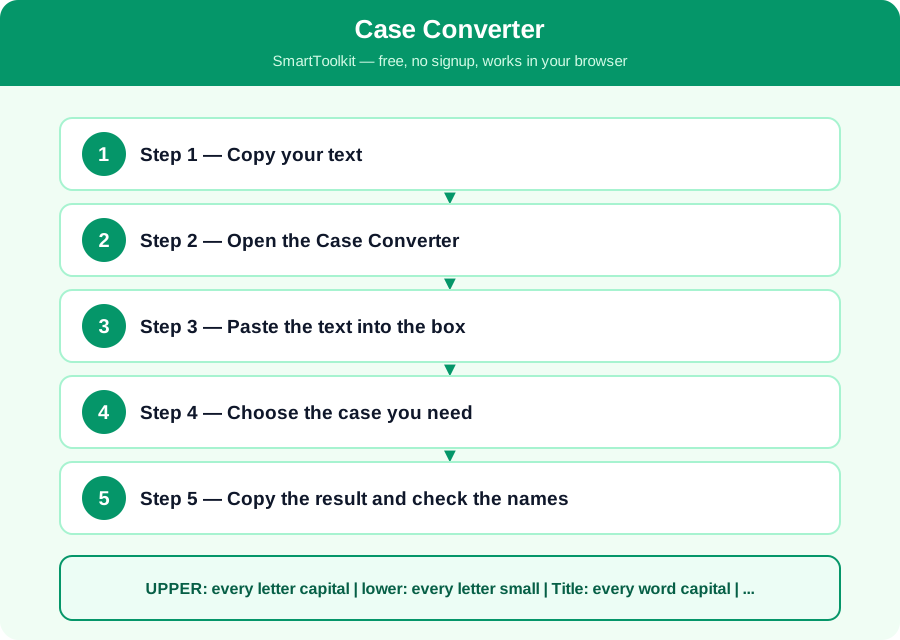
What Is the Case Converter?
Text case is the choice between capital letters and small letters. Upper case means every letter is capital: HELLO WORLD. Lower case means every letter is small: hello world. Title case capitalises the first letter of every important word: Hello World. Sentence case capitalises only the first letter of each sentence, like normal writing: Hello world. Each case has a job, and using the wrong one makes your text look careless.
Upper case is used for headings, warnings and abbreviations, but a whole paragraph in capitals is hard to read and looks like shouting. Lower case is used for normal text, email addresses and web addresses. Title case is used for book titles, headings and names. Sentence case is used for normal sentences, which is most of the text you write every day.
The Four Case Rules
UPPER: every letter capital | lower: every letter small | Title: every word capital | Sentence: first word capital
The rules are simple, but the details matter. In title case, small words such as a, an, the, and, of and in are usually left in lower case, unless they are the first word. In sentence case, the first letter after a full stop is capital, and names such as Pakistan and Ali are always capital. A converter applies these rules automatically, but you should still read the result, because names and abbreviations sometimes need fixing by hand.
Computers treat upper and lower case as different characters, so PASSWORD and password are not the same to a computer, and an email address typed in capitals may fail. That is why forms often ask you to type in a particular case, and why converting your text before you paste it into a form saves you from errors.
How to Use the Case Converter — Step by Step
Follow these five steps one by one. Each step builds on the last one, so do them in order and check your answer at the end.
Step 1 — Copy your text
Select the text you want to change and copy it. It can be a single word, a heading, or a whole paragraph. If the text is in a document, a form or a chat message, copying it is safer than retyping it, because retyping introduces new mistakes.
Step 2 — Open the Case Converter
Open the free Case Converter on this site. It works in your browser, needs no signup and no login, and your text never leaves your device, so it is safe for private writing as well as for school work.
Step 3 — Paste the text into the box
Paste your copied text into the converter box. Check that the whole text is there, including the first and last lines, because it is easy to miss a line when you copy from a long document.
Step 4 — Choose the case you need
Click the button for the case you want: UPPER CASE for a heading or a warning, lower case for an email address, Title Case for a heading or a name, or Sentence case for normal writing. The result appears at once, and you can try a different case if the first one does not look right.
Step 5 — Copy the result and check the names
Copy the converted text and paste it where you need it. Then read it once, and fix any names, such as Ali or Pakistan, and any abbreviations, such as CNIC or NADRA, that the converter may have changed. A quick check takes ten seconds and stops an embarrassing mistake.
Worked Example
A student types her essay title as the history of pakistan in lower case. Using title case, it becomes The History of Pakistan, which is correct for a heading. The same student accidentally types a whole paragraph with caps lock on: THE HISTORY OF PAKISTAN IS VERY RICH. Using sentence case, it becomes The history of pakistan is very rich, and then she fixes Pakistan by hand to get The history of Pakistan is very rich. Finally, an email address typed as Ali@Gmail.Com becomes ali@gmail.com in lower case, which is the form email systems expect.
Common Mistakes to Avoid
Mistake: Using upper case for a whole paragraph. It is hard to read and looks like shouting, so use upper case only for short headings and warnings.
Mistake: Forgetting that names stay capital in sentence case. A converter may change Ali to ali, so always check names and place names after converting.
Mistake: Using title case for a normal sentence. Title case capitalises every word, which looks wrong in the middle of a paragraph, so use sentence case for normal writing.
Mistake: Pasting text with hidden formatting. Text copied from a website can carry hidden formatting that a converter cannot see, so paste it as plain text first if the result looks strange.
Frequently Asked Questions
What is the difference between title case and sentence case? Title case capitalises the first letter of every important word, so it is used for headings and titles. Sentence case capitalises only the first letter of each sentence, so it is used for normal writing and paragraphs.
Should email addresses be upper or lower case? Lower case. Email systems treat capitals and small letters as different, and most email addresses are written in lower case, so always convert an email address to lower case before you send it.
Can a case converter fix my whole document? Yes, you can paste a whole document into the converter, but check the result afterwards, because names, abbreviations and headings may need fixing by hand. It is faster than retyping, but it is not a replacement for reading your work.
Why does my phone keep changing the case of my words? Phones and word processors often capitalise the first word of a sentence automatically, and they learn names and correct them. If the automatic change is wrong, turn off auto-capitalisation in your keyboard settings.
Why Use SmartToolkit for This?
You now know the four text cases, when to use each one, and how to convert your text in seconds without retyping. A small case mistake can make a form, an essay or a heading look careless, so check the case before you send anything. Use the free Case Converter on this site — it works in your browser, needs no signup and no login, and your text never leaves your device.
Use the Case Converter — free, no signup, no login, and your data never leaves your browser.